
IP Limitation for Organizations: for corporate security and safety of students.
IP Access Restrictions
DocupletionForms lets an organization admin restrict access to your account by IP address. The check runs at two points — when a user logs in and when they switch organizations — so a restricted IP is stopped before it reaches your data.
Admin access required. This feature is configured by the organization owner under Organization Settings. You must be signed in with your organization admin account to see and change these options.
How the restriction scope works
When you add a restricted IP address, you choose who the block applies to:
- All — Any user coming from that IP address is blocked.
- Only Group — The block applies only to users who are members of the selected group.
- Only Member — The block applies only to the specific tenant user, matched by user ID.
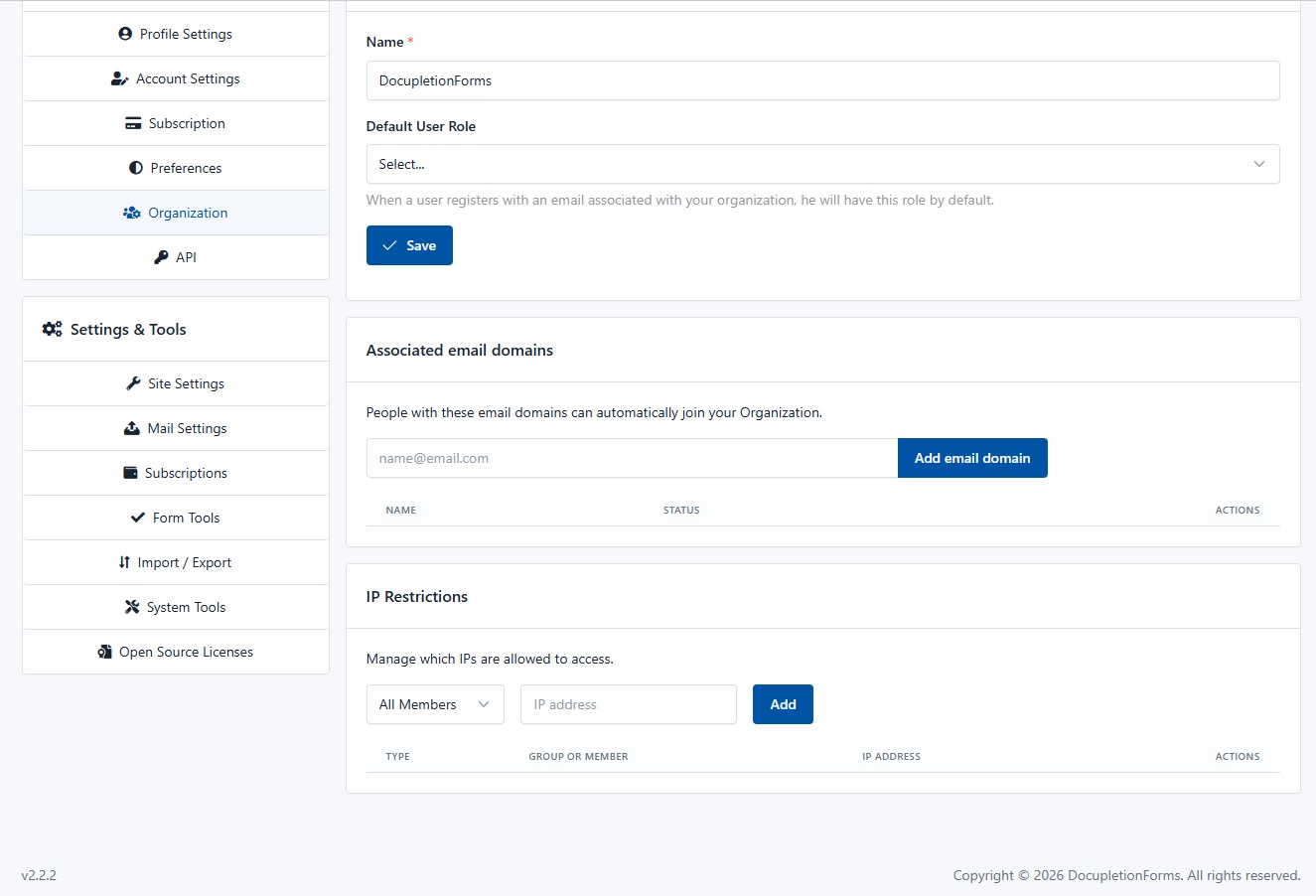
The IP Restrictions panel in Organization Settings.
How to configure it
- Sign in with your organization admin account.
- Open your Organization Settings.
- Go to the IP Restrictions section.
- Add the IP address you want to control.
- Choose the scope — All, Only Group, or Only Member.
- Save your changes.